
Creating a job
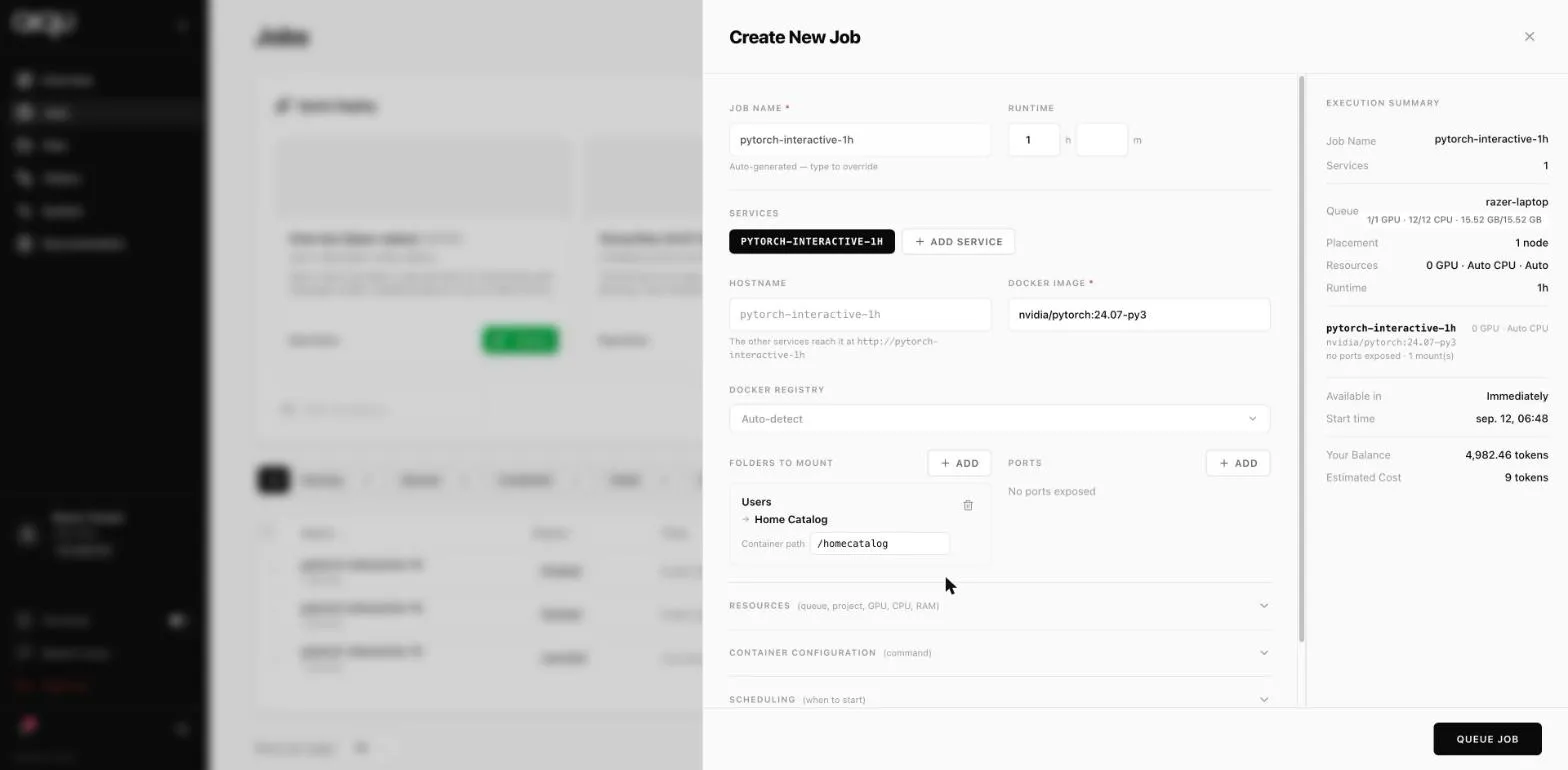
NEW JOB opens a panel with the form on the left and a live execution summary on the right. The summary is not decoration: it is the only place that tells you what the job will cost and when it can start, and it updates as you type.
The minimum
Section titled “The minimum”A Docker image. That is genuinely all that is required for an interactive job - the name, runtime, queue and resources all have workable defaults.
Two additions are worth making every time:
- a runtime long enough that you are not extending it in a hurry, and
- a mounted folder, or your output is deleted with the container.
Job name and runtime
Section titled “Job name and runtime”Job name generates itself from the image and the runtime -
pytorch-interactive-1h. Type over it if you want something meaningful.
Runtime is hours and minutes. When it expires the container stops and is removed. You can extend a running job, but not a finished one.
For a non-interactive queue the runtime field is disabled - the job ends when its command does.
Services
Section titled “Services”A job holds one or more services, each its own container. + ADD SERVICE adds another.
Each service has:
- Hostname - how the other services in this job reach it. The form tells
you the address:
http://<hostname>. - Docker image - required, per service.
- Docker registry - Auto-detect unless the image is in a private registry.
One service is the normal case. Several is for when containers need to talk to each other and must be scheduled and timed together.
Folders to mount
Section titled “Folders to mount”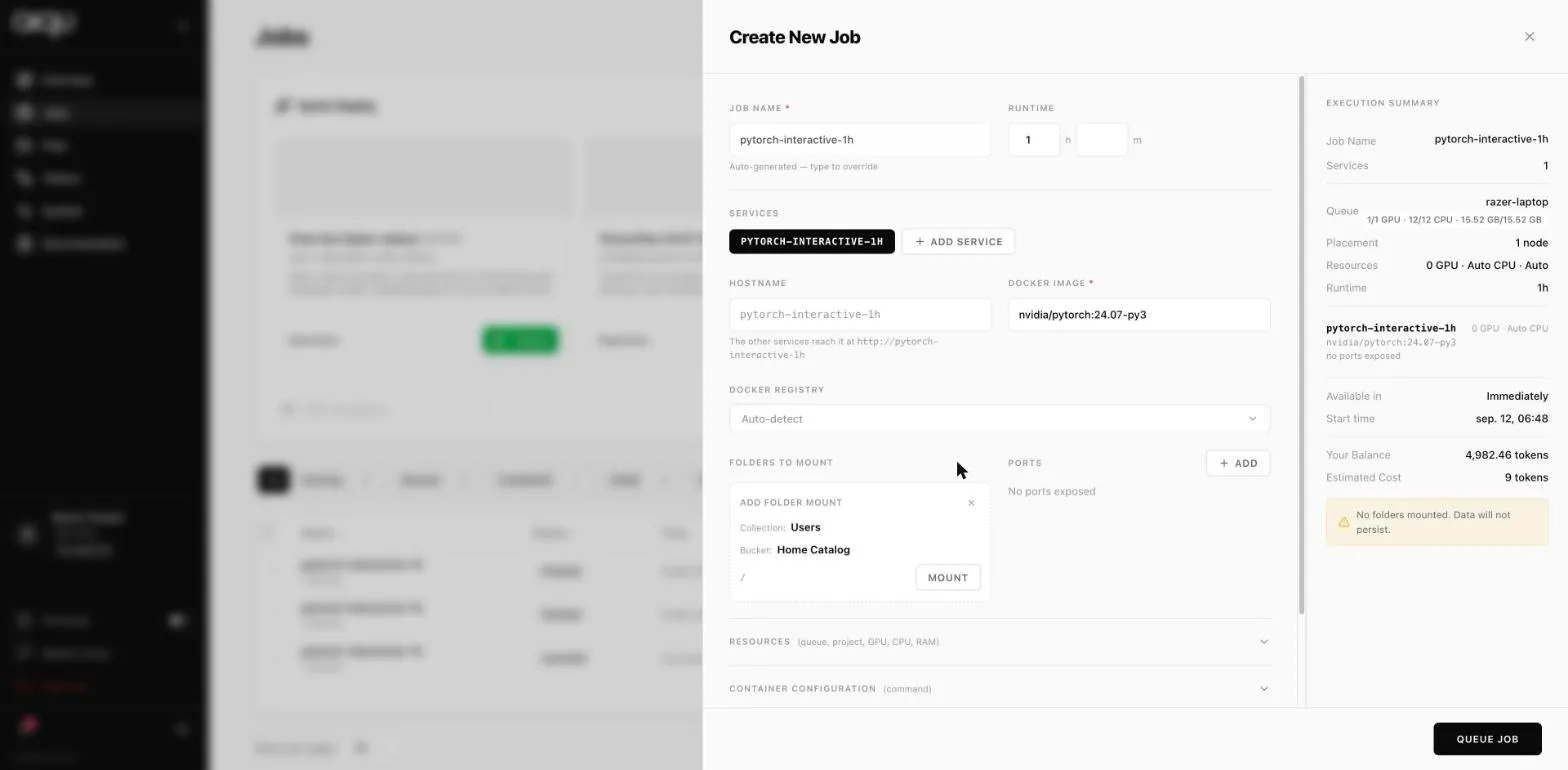
+ ADD, pick the bucket, MOUNT. It appears with a container path you can edit, and the “data will not persist” warning disappears.
Two mounts cannot target the same path, and an invalid path is refused by name at submit time.
Ports you declare here can be proxied out once the job is running. Add them by number; duplicates and out-of-range values are rejected.
If you have neither public- nor private-port permission on the queue, the field is disabled and no ports are submitted. See Ports and proxies.
Resources
Section titled “Resources”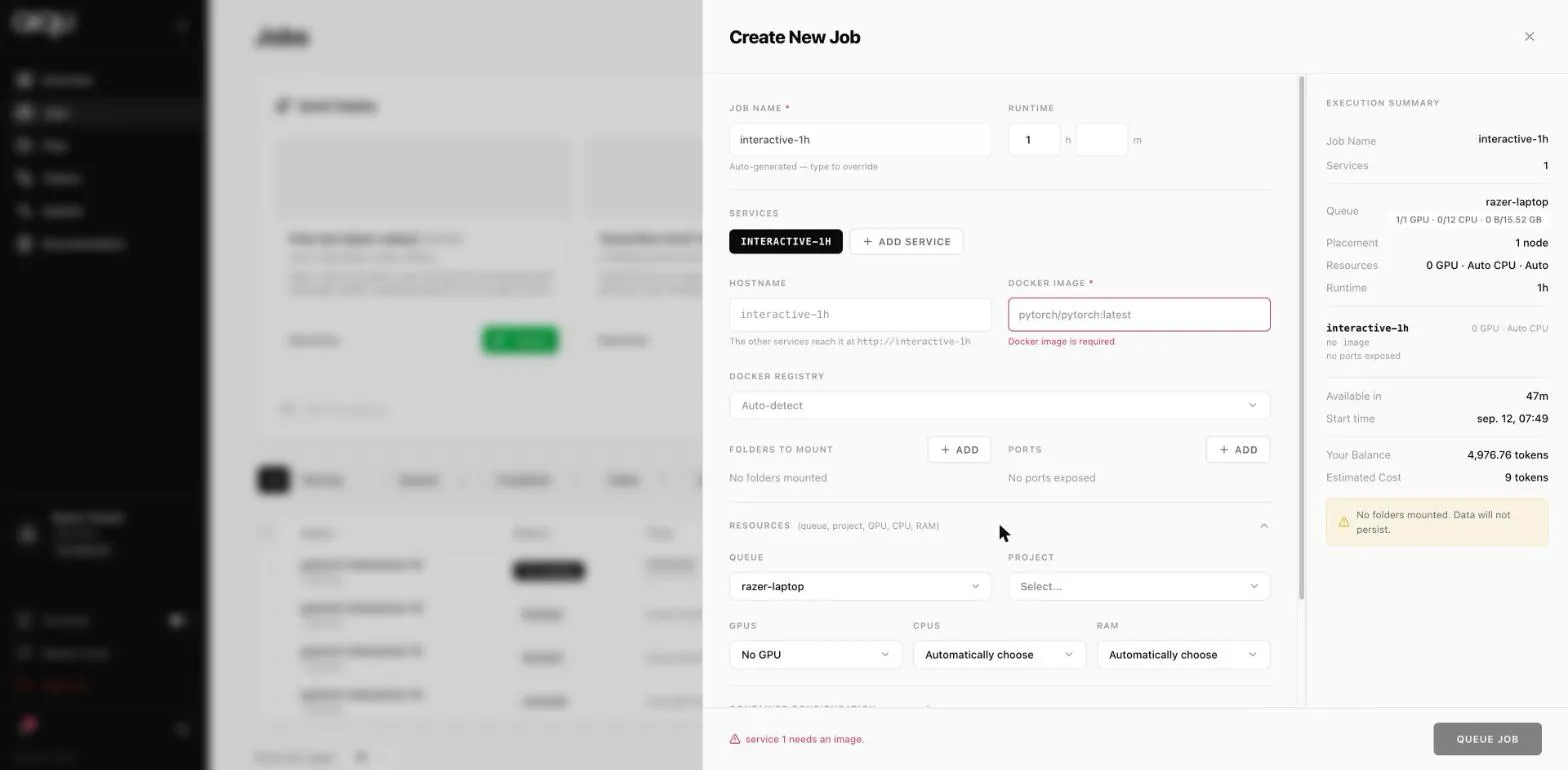
Queue decides almost everything else - which nodes, which limits, which
storage, what it costs. The summary shows the queue’s free and total GPU, CPU
and memory as 1/1 GPU · 12/12 CPU · 15.52 GB/15.52 GB.
Switching queue resets anything the new queue cannot offer rather than letting you submit something impossible.
Project charges the job to a shared budget instead of your own tokens. If your tenant requires a project there is no “no project” option, and the summary’s balance follows the project rather than you.
GPUs is bounded by the lowest of: the queue’s maximum, your per-job limit, and your total limit. You cannot select your way past a permission.
CPUs and RAM appear only if advanced job view is enabled on your account. Without it the scheduler sizes them, which is what Auto means in the summary.
On a hybrid queue an interactive / non-interactive toggle appears. On a single-type queue the job type follows the queue.
Container configuration
Section titled “Container configuration”The command to run in the container.
Optional for an interactive job - leave it empty and the image’s own entrypoint runs. Required for a non-interactive job: submitting without one is refused.
Scheduling
Section titled “Scheduling”Start ASAP is on by default. Turn it off to pick a future date and time; only future times are accepted, and the cost and availability estimate recalculates for the new slot.
Environment variables
Section titled “Environment variables”Name/value pairs passed into the container, each with a Forget toggle that discards the value after use - the right choice for anything secret.
A half-filled row (a name with no value, or the reverse) disables submission and says so.
The execution summary
Section titled “The execution summary”| Line | Read it as |
|---|---|
| Queue and its capacity | Where this will run, and what is free there now |
| Placement | How many nodes it needs |
| Resources | What you asked for; Auto means the scheduler decides |
| Available in | Immediately, or a wait. This is the honest answer to “when” |
| Start time | The concrete timestamp |
| Your Balance | Yours, or the project’s if one is selected |
| Estimated Cost | Tokens for the full runtime |
If no start time can be worked out at all, the estimate reads N/A rather than inventing a date.
When QUEUE JOB stays disabled
Section titled “When QUEUE JOB stays disabled”- No image. The commonest one.
- Runtime is zero on an interactive job.
- No command on a non-interactive job.
- No add-job permission on that queue. The form says which permission is missing - it is an administrator’s to grant.
- An incomplete environment variable.
- Duplicate or invalid mount paths.
If the queue itself has no usable node, submission is refused with a message telling you to change queue or talk to an administrator. No amount of editing the form gets past that.