
Jobs
Everything you actually do with AiQu happens here.
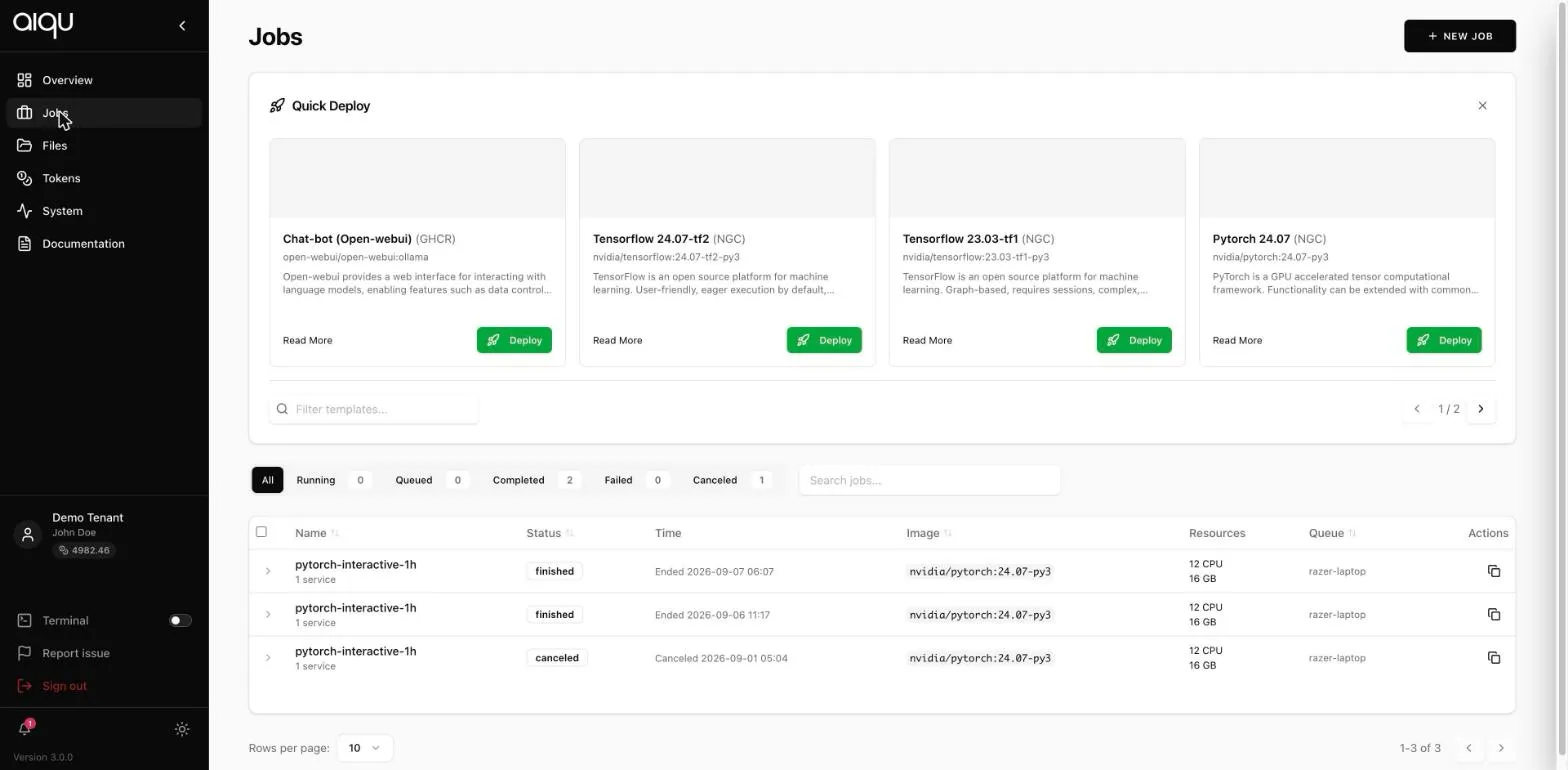
The table
Section titled “The table”One row per job, refreshing on its own - you do not need to reload to watch a job change state.
| Column | Notes |
|---|---|
| Name | The job label, with its service count beneath. A job with no label shows as Unnamed Job. |
| Status | The job’s state. Where services disagree, the row reports how many are running rather than picking one. |
| Time | Ended, cancelled or remaining, depending on state. |
| Image | The container image of the job’s first service. |
| Resources | CPU and memory. Where the scheduler chose for you it says so rather than showing a raw number. |
| Queue | Where it ran. |
| Actions | Only the actions valid for that state. |
Sort by clicking a header, including Status and remaining time. Page sizes are 5, 10 and 20.
Filters
Section titled “Filters”The status row above the table - All, Running, Queued, Completed, Failed, Canceled - carries live counts, so it doubles as a summary. The search box filters by free text and resets you to the first page.
Expanding a row
Section titled “Expanding a row”A job’s row expands to reveal its services. This distinction matters:
- Clicking the job row expands it. No panel opens.
- Clicking a service inside it opens the detail panel.
Most jobs have one service, so most of the time this is one extra click between you and the logs.
Row actions
Section titled “Row actions”Which actions appear depends on the state:
| Action | Available when |
|---|---|
| Show services | Always |
| Clone | Always - reopens the form with every setting filled in |
| Extend all | The job is running. Extends every service by the same amount |
| Cancel job | The job is not already finished or cancelled |
Cancel asks for confirmation and then disables itself, so a job cannot be cancelled twice.
Acting on several jobs
Section titled “Acting on several jobs”Select jobs with the row checkboxes, or use the header checkbox to take the whole filtered list. With a selection made, two bulk actions appear:
- Requeue submits each one again with its original settings.
- Cancel cancels only those that are not already finished, and tells you how many that is before doing it.
Both confirm first, and dismissing the confirmation changes nothing.
For administrators
Section titled “For administrators”A tenant admin sees an Admin View toggle that switches the table to every user’s jobs in the tenant. It is read-oriented: while it is on, the detail panel offers no edit or restart. Ordinary users never see the toggle.