Users
On this page the admin can manage the users and user groups in their tenant. New users and user groups can be added here and to edit the properties you can click the corresponding row in the table.
User

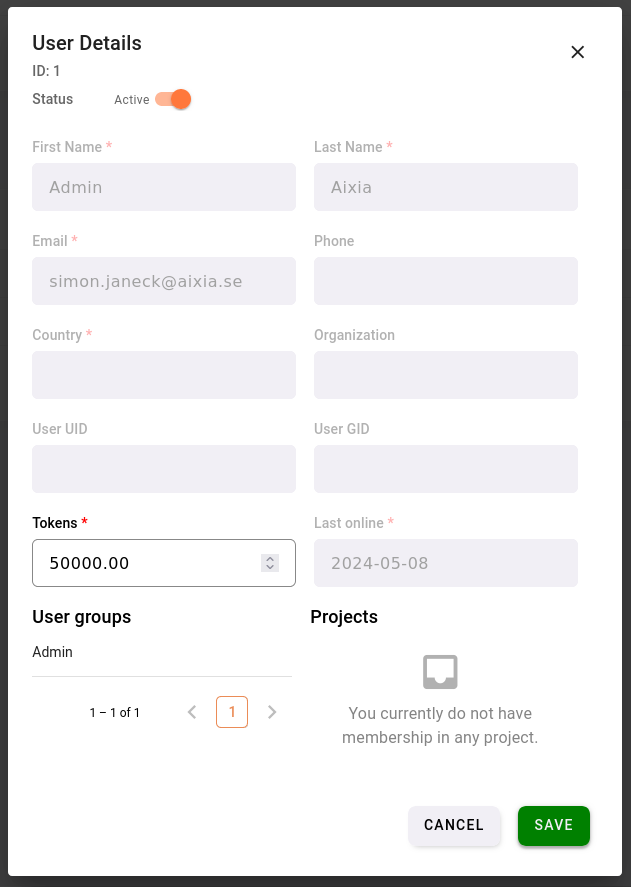
If you click on a User in the Users table you can:
Inactivate Account
Delete User
Edit the user’s User UID, User GID and Tokens.
The personal information fields (first name, last name, email, country, organization, phone) are shown for reference but are read-only here — they can only be changed by the user themselves under their own settings.
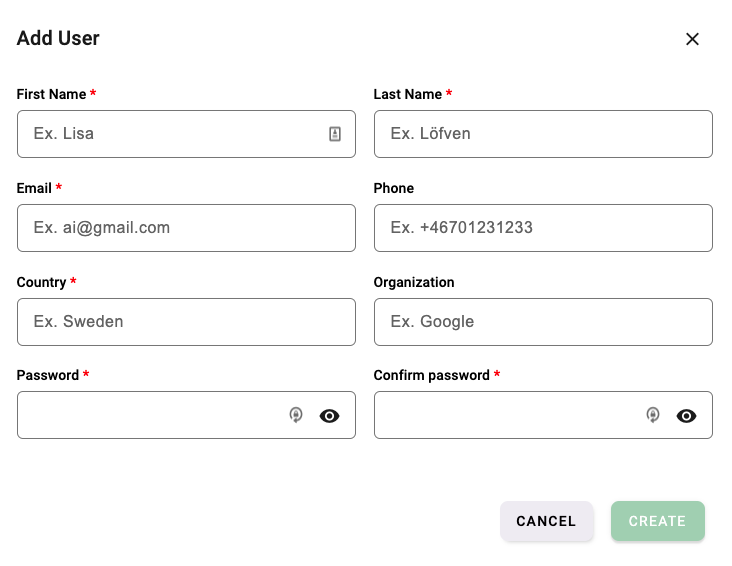
Add User
To add a new user, simply press the Add User-button and fill out the information in the pop-up window:
User Groups

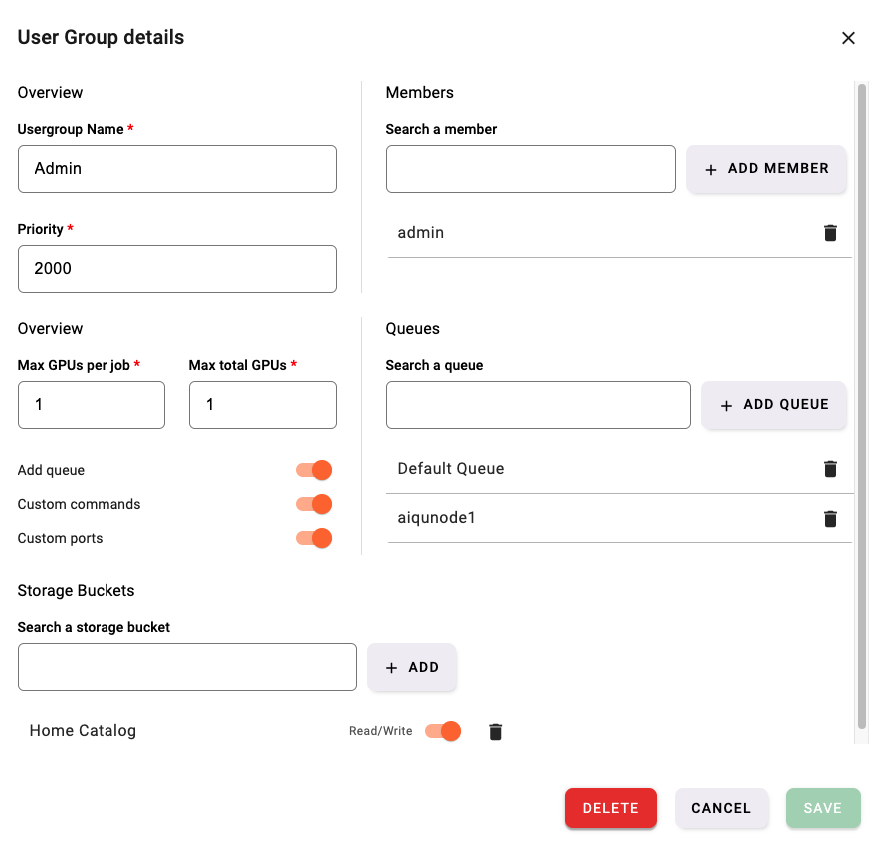
If you click on a UserGroup in the User Groups table you can:
Edit the name and priority of usergroup. The priority of a user group decides which jobs are run first. A higher number indicates higher priority.
Add and remove users from user group
Connect queues to user group
Connect storage to user group and specify its write permission
Edit permissions of users in user group
Max GPU’s per job: Maximum number of GPU’s per job
Max total GPU’s: Maximum number of GPU’s running simultaneously
Add job: Permission to queue jobs
Open private ports: Permission to expose private ports on a job container
Open public ports: Permission to expose public ports on a job container
Add Registries: Permission to add registries
Can only add Job with Project: Members may only queue jobs that draw tokens from a project (not from their personal account)
Disable login: Prevents members of this group from logging in
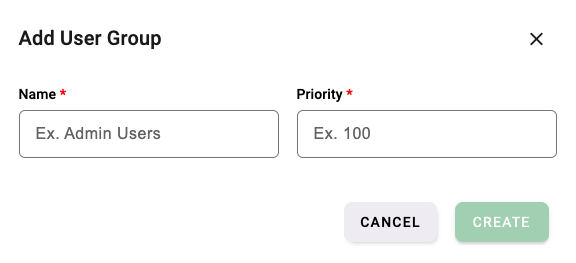
Add User Group
To add a new user group, simply press the Add User Group-button and fill out the information in the pop-up window:
Mapped Groups
When an external authentication source (e.g. LDAP) is configured, the user group details show a Mapped groups table. Mapping an external group to an AiQu user group automatically assigns users to that group based on their external group membership. The table lists the mapping ID, the External group and the User group it maps to.
LDAP Import
The External groups section lets you search for groups in the connected external directory and Import the selected ones into AiQu. Use the Sync button to synchronise user memberships from the external source so that imported groups stay up to date. See LDAP Settings for how to connect the directory.